How to make a comic: the ten stages from plan to print
A guide to making a comic from the first plan to a printed, shared book: what each of the ten stages means, why it matters, and how to do it in ComicCraft.
Updated September 26, 2026
Every comic goes through the same stages, whether it is a 24-page floppy or a 200-page graphic novel, and whether you draw it on paper, on a tablet, or here. ComicCraft is built around those ten stages. This guide walks through each one: what it means, why it matters for the printed book, and how to do it in the app. Read it straight through before your first book, or jump to the stage you are on.
Two ways in. If you are starting from an idea, begin at Plan and work down. If you already have a finished PDF or page files, the new project screen reads the page count, trim and bleed from the file, uploads the pages, and starts you at Proof; the earlier stages stay available, because even a finished book benefits from a script on file.
01 Plan: decide the physical book
What it means. Before any art, decide what object you are making: the format (comic book, graphic novel, zine, webtoon), the trim size, how many interior pages, how it is bound, and where it is going (print, digital, or both).
Why. Every later decision depends on these numbers. The trim size sets the canvas your pages must fill. Bleed and safe area follow from it. The page count decides whether a stapled book is even possible, since a saddle-stitched book needs a multiple of four pages. A perfect-bound book needs enough pages to have a spine. Change these late and you redraw or re-export everything.
In ComicCraft. The project settings hold one book: pick a preset such as the standard US comic (6.625 by 10.25 inches) or a printer's own spec, or type your numbers. New projects start as saddle stitch, which fits most short books; switch to perfect bound for anything over about 48 pages. Every tool inside the project reads these settings, so you set them once. The page size calculator shows the pixel canvas the settings imply, and the page count validator tells you whether your count works for the binding.
02 Script: write it page by page
What it means. A comic script is written in pages and panels, not scenes. Each page says what happens on it, panel by panel, with dialogue and captions.
Why. The page is the unit of comics. A page turn is a reveal, a right-hand page is where a surprise lands, and a page with nine panels reads differently from one with three. Writing page by page is how you plan pacing, and how you find out early that a scene needs six pages, not four.
In ComicCraft. The script editor keeps the script with the project. It counts panels and words per page and flags pages that are crowded. When you draw a page, its script shows beside the canvas. If you arrived with a finished book this stage is set aside, and one click on the journey brings it back.
03 Layout: thumbnail the book
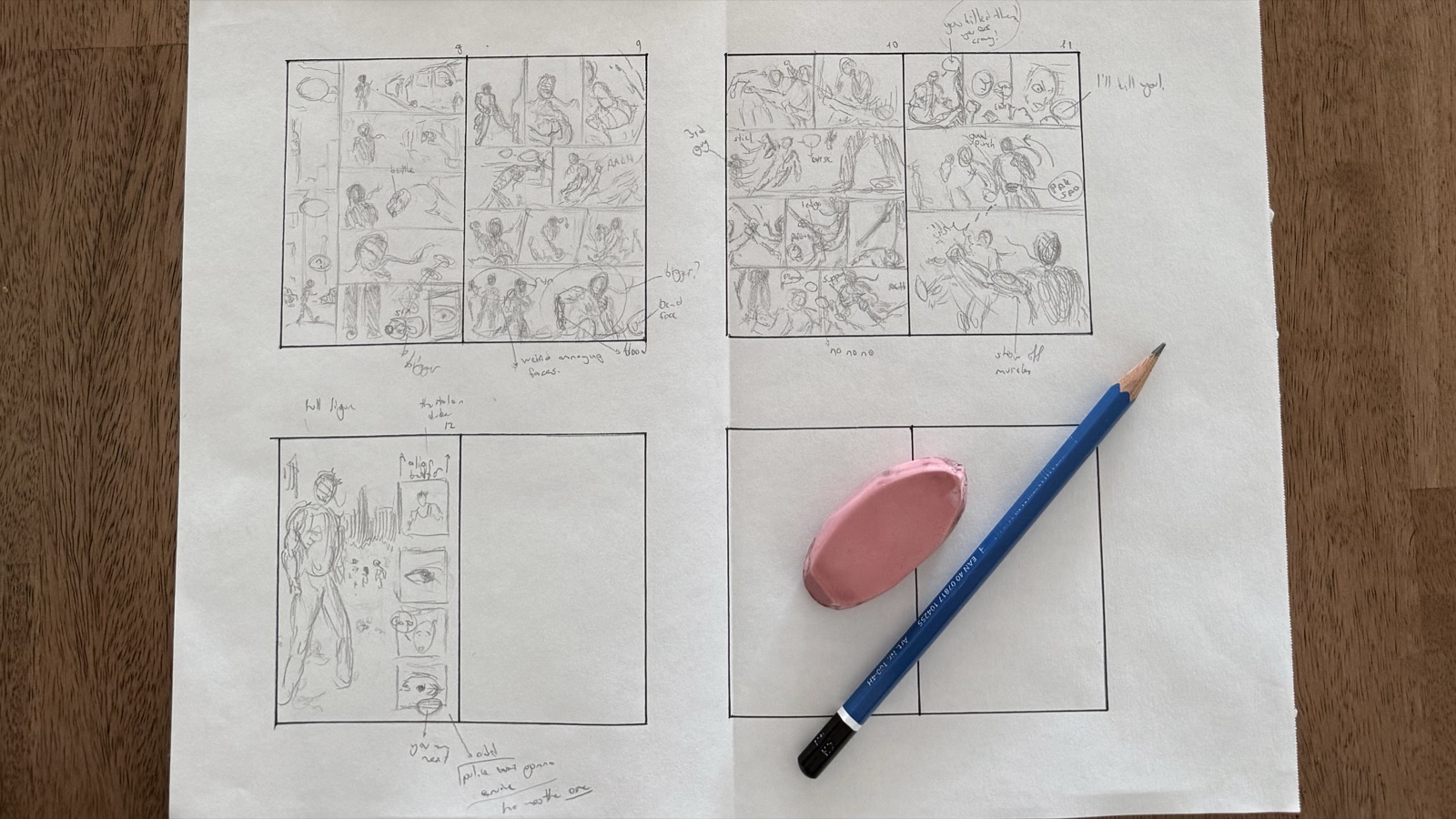
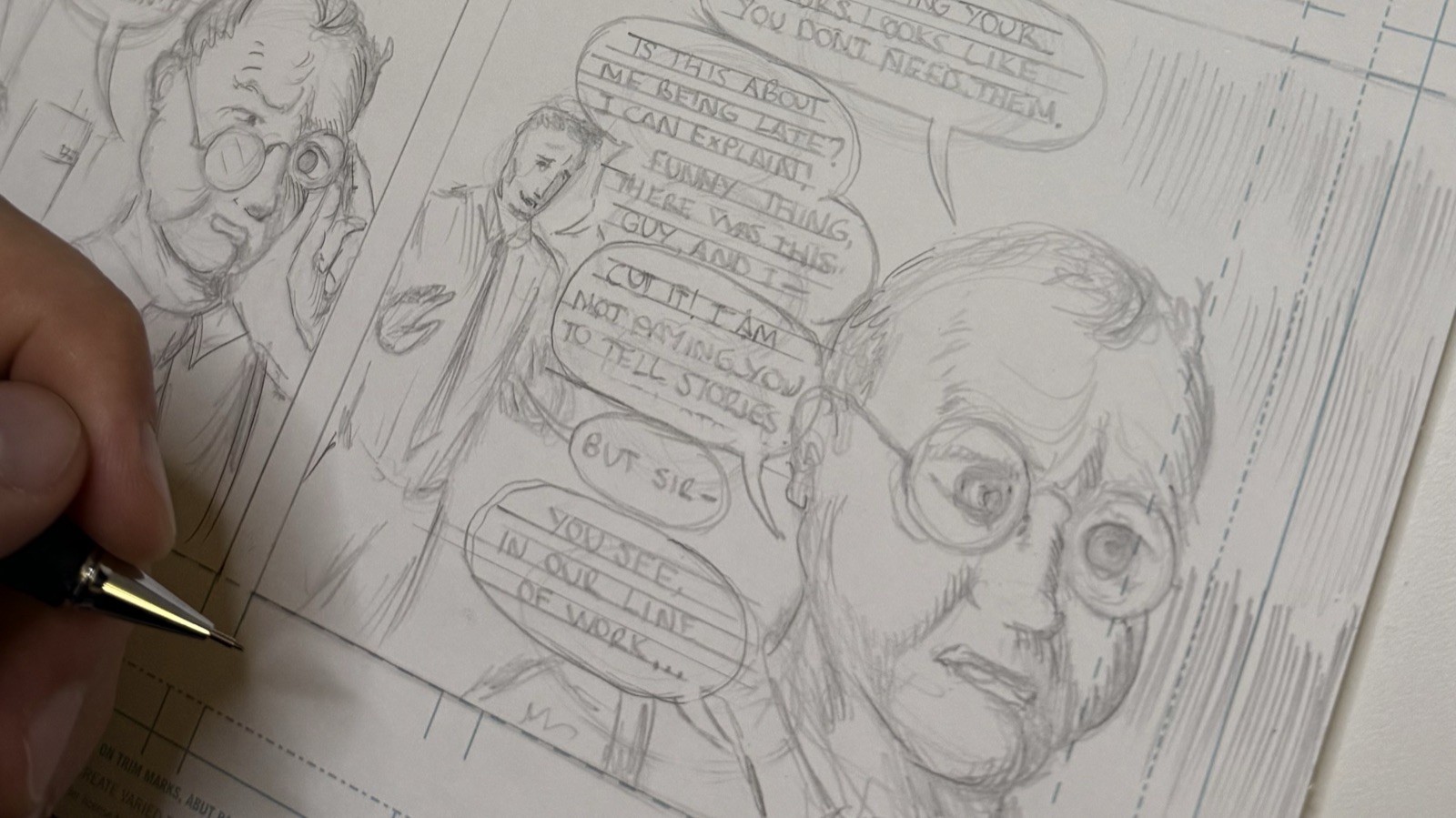
What it means. Thumbnails are small, rough sketches of every page: where the panels go, where the balloons sit, where the eye travels. No detail, just composition and flow.
Why. This is the cheapest place to fix a story problem. Moving a reveal to a page turn costs a minute here and a day once the page is inked. Thumbnailing the whole book before pencilling anything is the single habit that most separates finished comics from abandoned ones.
In ComicCraft. The Pages screen shows the whole book as one grid, one card per page in reading order. Open a page to draw on the thumbnails layer, drop in a panel grid from the toolbar (it lands on its own panels layer, so borders stay crisp later), and tick the page off. Thumbnail on paper if you prefer and tick pages off by hand; the count on the journey is the same either way.
04 Pencils: draw the pages
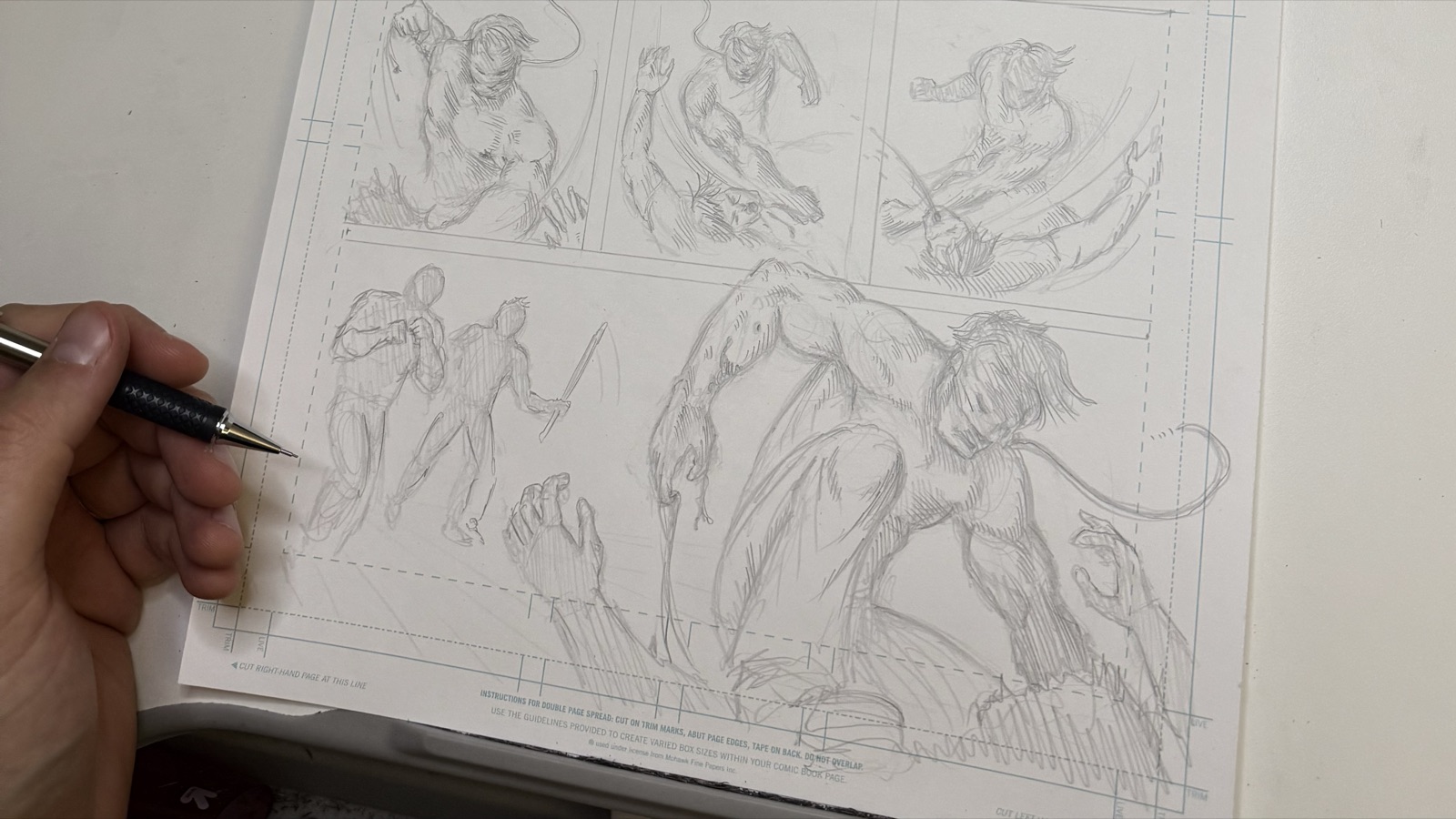
What it means. Pencils are the full drawing at final size: figures, backgrounds, perspective, expressions. Everything the inks will follow.
Why. Pencils are where the drawing problems get solved. Inking a weak pencil produces a confident-looking mistake. Drawing at final size, with the bleed and safe area marked, also stops the most common print failure: a face or a balloon that sits in the trim zone and gets cut.
In ComicCraft. The canvas is the page at your project's resolution, bleed included, with the trim line drawn on it and the safe area one switch away. Pencils are a layer of their own; the thumbnails fade underneath as a guide. Draw with a pen or a mouse, zoom with a pinch, and save; your drawing becomes a page in the grid. If you draw elsewhere, upload the page image instead, and it is checked against the project on the way in.
05 Inks: commit the line
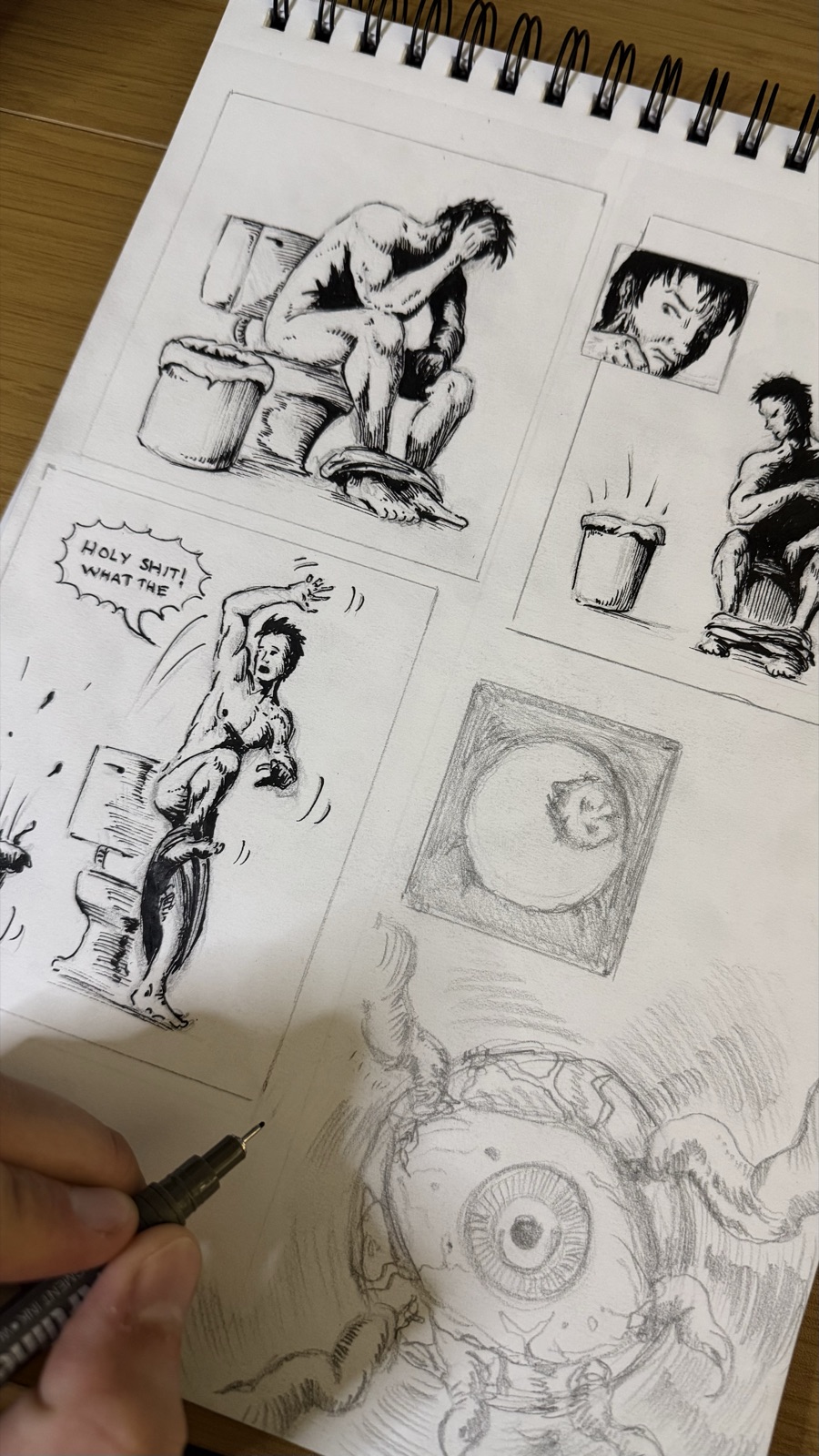
What it means. Inking turns pencils into the final black line art, with line weight, spotted blacks, hatching and texture.
Why. Ink is what prints. Thin grey pencil lines vanish on press; clean black lines at 300 DPI or more survive any printer. Line weight is also how a comic reads at a distance: heavier lines forward, lighter lines back.
In ComicCraft. Switch to the inks layer and the pencils fade to a reference tint. The nib, brush, G-pen, maru pen and fude brush swell and thin with pen pressure; the tech pen keeps an even line for borders. Nothing on one layer can touch another, so you can erase pencils without harming the inks, and exports leave the thumbnails and pencils out on their own.
06 Colours: flat and render
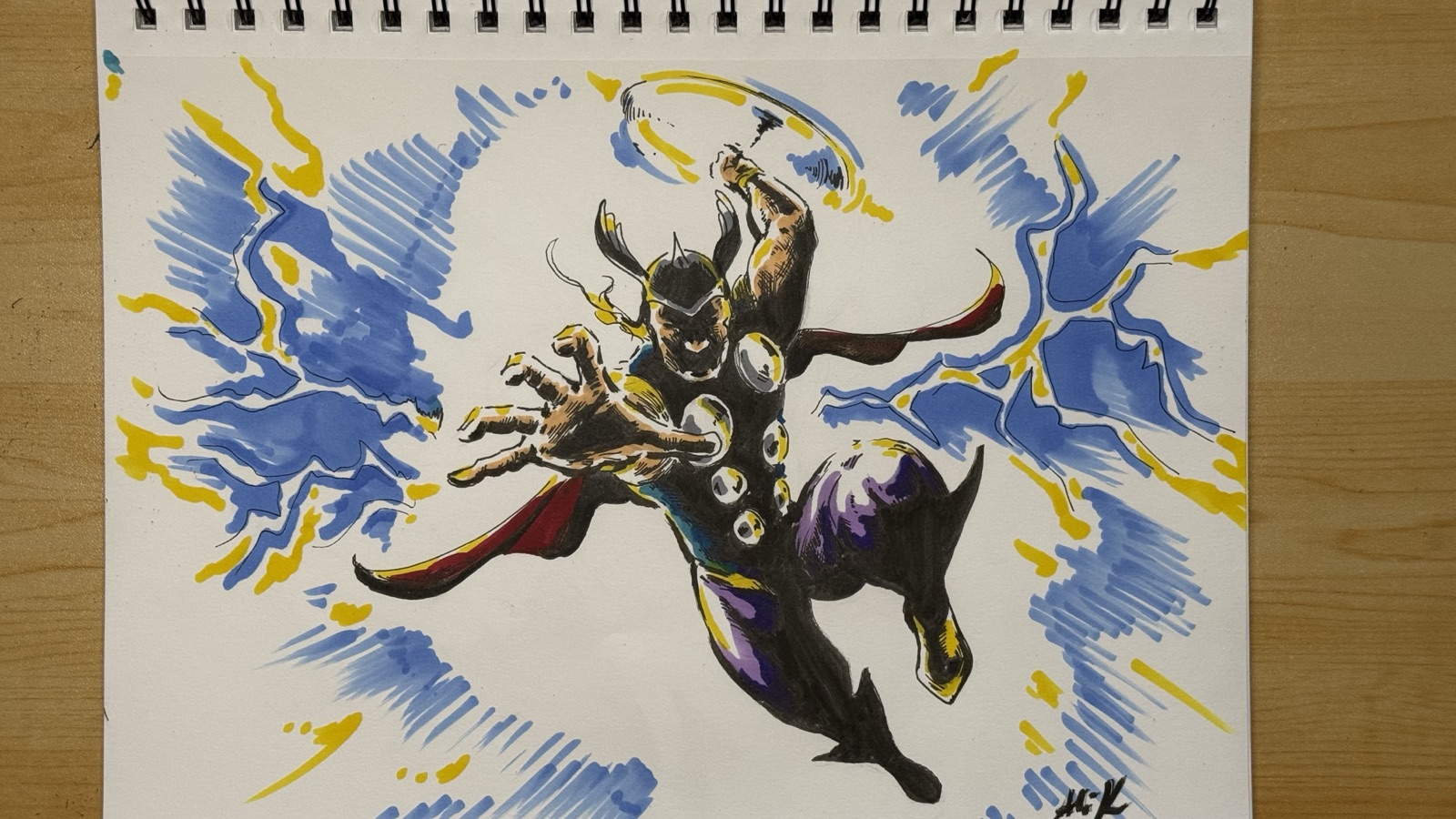
What it means. Flatting lays down solid colour regions under the inks; rendering adds light, shadow and texture on top of the flats.
Why. Colour under the line art keeps the inks crisp, and flats first make every later change cheap. For print, colour is also where RGB screens and CMYK presses disagree: bright screen blues and greens dull on paper, which is why a print preview matters.
In ComicCraft. The colours layer sits under the inks, so paint freely. Black-and-white books skip this stage entirely; turn off Colour book in the settings and the journey drops it. When you export a print PDF you can switch on a CMYK simulation, which pulls colours into the press gamut so you see what the printer will make of them before you order. More in RGB versus CMYK for comics.
07 Letters: balloons, captions, sound effects
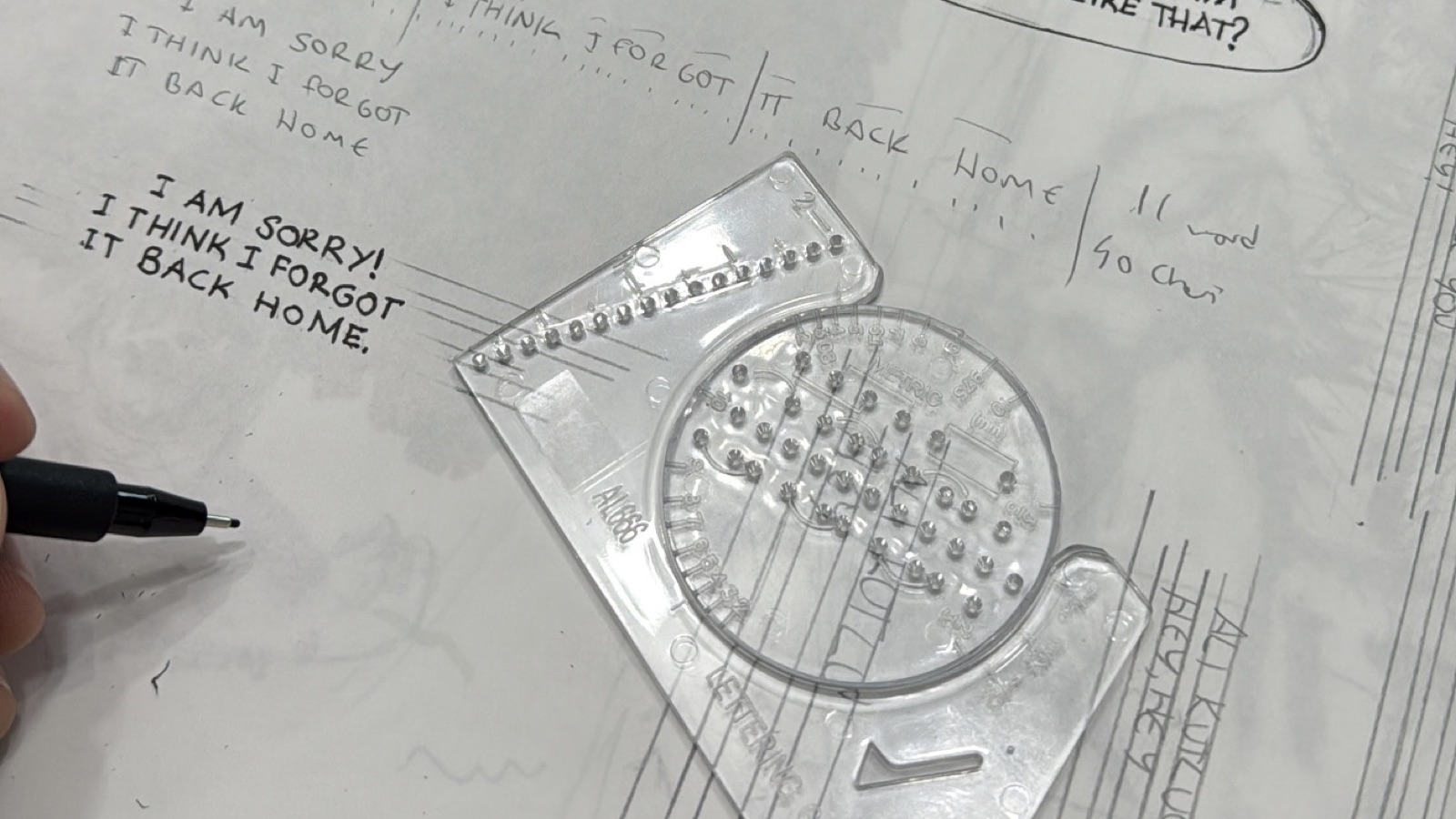
What it means. Lettering places the dialogue, captions and sound effects on the page, sized to be read at the printed size.
Why. Lettering that is too small is the most common reader complaint about self-published comics, and it is invisible on a screen where you can zoom. Balloon size, tail direction and reading order also do real storytelling work: they decide who speaks first.
In ComicCraft. Balloons and captions are typed, not drawn: choose a lettering face, type, drag to place, aim the tail. Sizes come from your trim, so what looks right on the canvas is right on paper. Letters sit above the panels layer, so a balloon can break a border cleanly. Once a page is lettered, its art is done.
08 Proof: check every page for print
What it means. Proofing is checking each finished page against the book: resolution, bleed, page shape, page order and count.
Why. Printers reject files for boring reasons: a page at 221 DPI, a page drawn at trim size with no bleed, a page count that is not a multiple of four, a PDF without a TrimBox. Finding these before you pay for a print run is the whole point.
In ComicCraft. Every uploaded page is checked as it arrives and marked pass, warning or error, with the reason. The Proof screen lists the pages that need attention with the fix beside each: lay the page out (fill or fit, zoom, move, rotate, flip, crop, colour) in the page editor, extend the bleed, or add a blank page to reach a printable count. The DPI checker and the PDF preflight run the same checks on any file, no account needed.
09 Publish: build the files
What it means. Publishing is producing the actual deliverables: a print PDF for the printer, a digital PDF or CBZ for readers and stores, a cover file with the spine sized to the page count and paper.
Why. Each output has its own rules. A print PDF wants single pages with bleed and a TrimBox, or imposed booklet sheets for home printing. A digital edition wants trim-sized pages with no bleed, at a size that reads well on a tablet. A cover needs a spine width that depends on the paper. Getting these right by hand is where evenings go.
In ComicCraft. The print PDF, the digital PDF and the CBZ are built in your browser from your pages, drawn or uploaded, blanks included, with the boxes set the way printers expect. The spine calculator and its cover template give you the wraparound cover at the right size. Every export is recorded with the project, so the journey knows the book has been built.
The journey keeps score
You do not have to remember any of this. The project's journey shows the ten stages as a trail, marks what is done from what you have actually saved, and says what to do next. Page stages count page by page, so a book shows “In inks · 6/24” rather than a vague percentage. Stages you do not need, such as colours on a black-and-white book, are skipped. Nothing is locked: go back to any stage whenever you like.
Questions
Do I have to follow the stages in order?
No. The journey suggests the order most books follow, but any stage can be opened at any time, marked done by hand, or skipped. A book that arrives as a finished PDF starts at Proof.
Can I draw somewhere else and still use the journey?
Yes. Upload the pages you draw in your own tools and tick stages off on the Pages screen. Uploaded finished pages count as done automatically.
What page size should I start with?
The standard US comic trim is 6.625 by 10.25 inches with an eighth of an inch of bleed on each side. Pick it as a preset, or use the spec of the printer you already know you will use.
How many pages does a stapled comic need?
A multiple of four, because each folded sheet makes four pages. A 24-page or 32-page interior is typical. Perfect-bound books can have any count but need enough pages to make a spine.